Author Archives: XZoLMLRU2Pg

How to Insert Facebook Like Button on WordPress


read more »

How to Hide Facebook Friends Posts


read more »

How to Delete Facebook Games


read more »

How to Join Facebook Group


read more »

How to Know Facebook Email Account


read more »

How to Rotate or Flip Facebook Photos


read more »

How to Check and Change Facebook Email


read more »

How to Stop Facebook Emails


read more »

How to force Facebook logout


In this tutorial, you are going to learn how to force Facebook logout. You may have left your account logged in on another computer, or you may suspect that someone else has gained access to your account. This tutorial will show you how to force your account to be logged out wherever it is logged in.

Step # 1 – Accessing Facebook Settings
First, go to www.facebook.com and make sure you are logged into your Facebook account. Then click on the gear icon in the upper right-hand corner of the screen, and choose the “Privacy Settings” option from the drop-down menu.
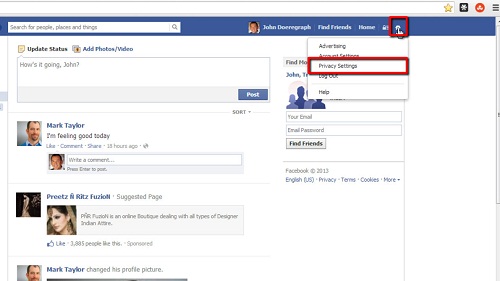
Opening Privacy Settings


Step # 2 – Forcing the Logout
Next, from the navigation options on the left-hand sidebar, click on “Security.” A list of security settings will come up and you will choose the last security setting in the list: “Active Sessions.” Click the “Edit” option on the right and all active logins will come up. Simply click “End Activity” to logout any instances. And that’s it, you have now learned how to force Facebook logout.
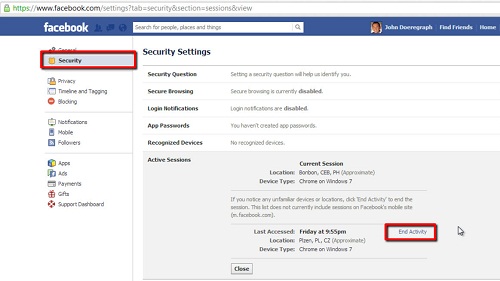
Choosing to end account activity

How to use Facebook advanced search


In this tutorial, you are going to learn how to use Facebook advanced search.

Step # 1 – Running a Standard Search
First, go to “www.facebook.com” and login to your Facebook account. Next, type your search phrase into the search box located on the top of the page, to the left of the magnifying glass icon. You may type in the name of a person or the name of an interest, a place, an app, a music artist, etc.
Searching within Facebook

Step # 2 – Accessing the Advanced Search Features
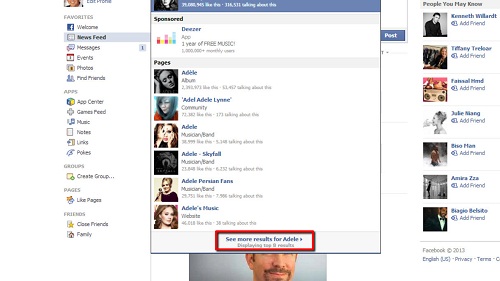
When you have finished typing in your search phrase, you will see “See More Results For ” at the bottom of the drop-down results for your search. Click on this link, and the advanced search filters will come up in the left-hand navigation bar. From here, you may narrow down your search by any of the options listed, including People, Pages, Places, Groups, Apps, etc.
Opting to see more results

Step # 3 – Refining a Search Further
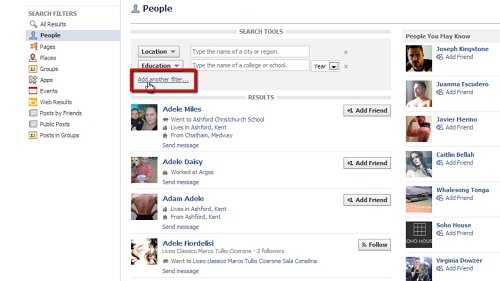
If you click on the “People” search filter, you will see an option to further refine your search by adding any or all of three filters: “Location,” “Workplace,” and “Education” (which includes the date).
That’s it, you have now learned how to use Facebook advanced search.
Creating an additional search filter