Author Archives: XZoLMLRU2Pg

How to Make Smileys on Facebook Chat

In this tutorial, we will show you how to make smileys on Facebook chat.

read more »

How to search Facebook friends by area


In this tutorial, you will learn how to search Facebook friends by area.
Step # 1 – Accessing Your Facebook Profile
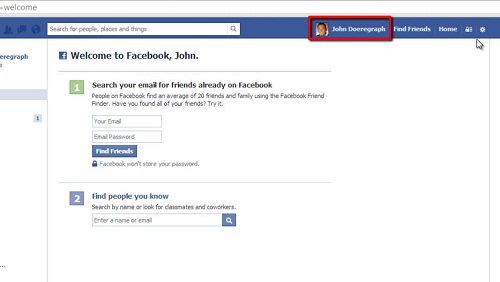
First, go to “www.facebook.com” and login to your Facebook account. Once you are logged in, click on your name, to the left of the “Home” icon in the upper right-hand corner of the screen, this will bring up your profile page.
Accessing your profile page

Step # 2 – Entering a Specific Search Criteria
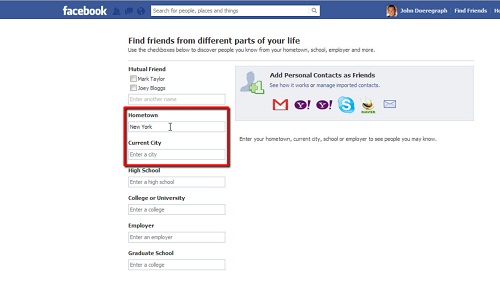
Next, click on your “Friends” icon, to the right of your status update box. In the upper right-hand corner of this screen, next to the “Edit” button,” click on the “+Find Friends” icon. From here, you will see a “Hometown” search box and a “Current City” search box. The “Hometown” search box will find people who have the hometown you enter in the search box listed as their own hometown, and the “Current City” search box will find people who have the current city you enter in the search box listed as their own current city.
Searching by hometown or city

Step # 3 – Adding Friends
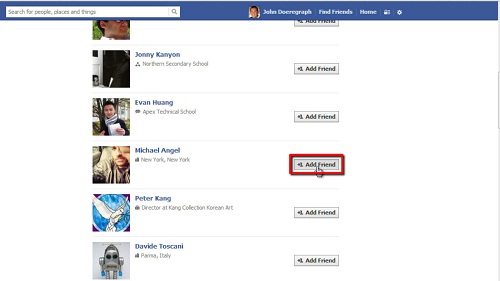
After you enter the city you would like to search, simply hit enter and the list of people with that city listed will come up. Scroll through the list and add anybody you know by clicking the “Add Friend” icon next to their name. And that’s it, you now know how to search Facebook friends by area.
Adding friends who match the search criteria

How to make someone a Facebook event admin


In this tutorial, you will learn how to make someone a Facebook event admin. Recently, Facebook has changed its terminology so that instead of using the term “admin” for events, it now uses the term “host.” A host means the same thing as admin used to mean – the host can change the event description, control the event wall, make other people hosts (or “admins”), etc.

Step # 1 – Navigating to Events
First, go to “www.facebook.com” and make sure you are logged into your Facebook account. You should see a list of items in the left-hand sidebar, including “Favorites,” “Pages,” etc. If you do not see this in the sidebar, click on the “Home” tab in the upper right-hand corner of the screen. Next, click on the “Events” link, then click on the event you want to edit from the list (you should have created your event already).
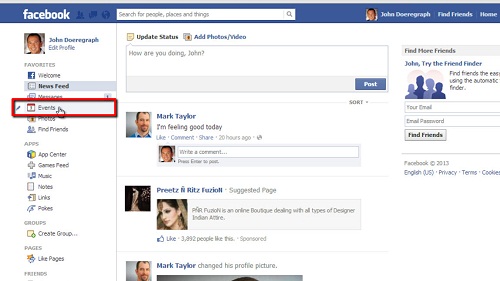
Opening the Events area

Step # 2 – Adding a Host
Next, click on the “Edit” button in the upper right-hand corner of the events page, then add whoever you would like to add as an admin (host) where it says “Hosts,” then click “Save.” If the person you added was already invited to and joined the group, they will immediately become a host. If they have not yet joined, they will be sent an invitation and, once accepted, they will become a host.
You now know how to make someone a Facebook event admin, which is now called an event host.
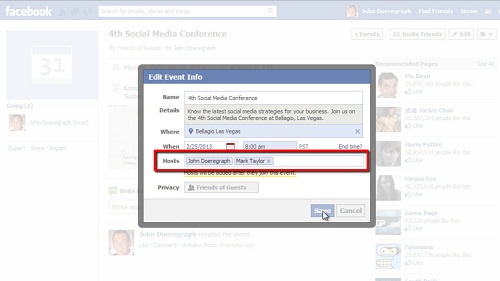
Adding the host to the event

How to insert Facebook like button on website

This tutorial will show you how to insert Facebook like button on website.

read more »

How to Hide Facebook Relationship Status Change


read more »

How to Get Facebook Post Url


read more »

How to Hide my Facebook Wall from a Friend


read more »

How to Add Facebook Cover Page


read more »

How to Unblock Someones Facebook Status Updates


read more »